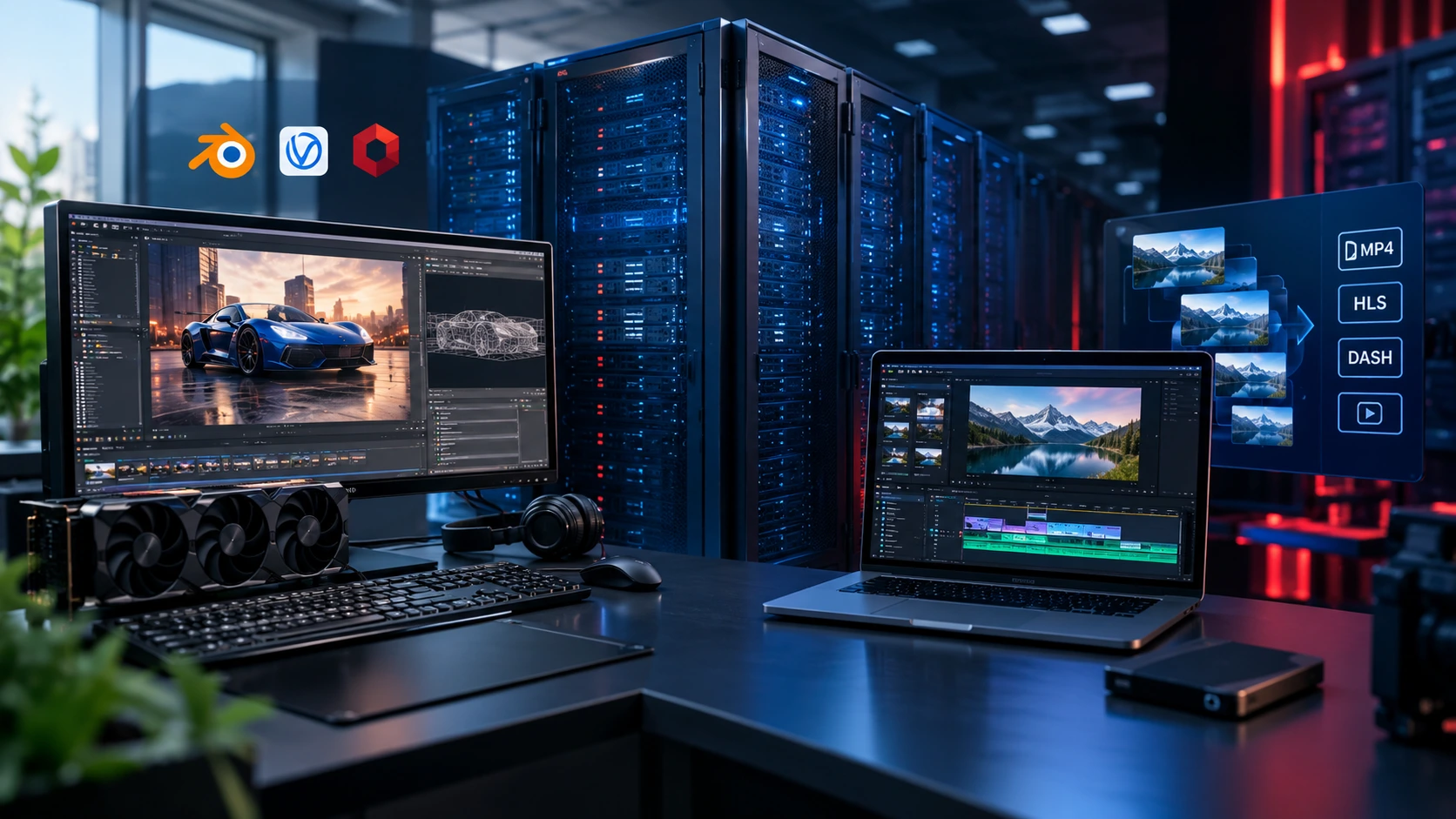
A dedicated server for 3D rendering and video transcoding gives you every CPU core, GPU, gigabyte of RAM and megabit of bandwidth on the machine, with no other tenant competing for them. That matters because rendering and transcoding are sustained, resource-hungry jobs. A single Blender animation, a V-Ray scene or a batch of 4K transcodes can saturate a processor for hours, and shared or virtualized platforms handle that kind of load badly.
This guide explains how rendering and transcoding use hardware differently, which specs to choose for each workload, how to calculate bandwidth, and how a dedicated server (also called a bare metal server) compares with cloud instances and VPS plans. It is written for freelance 3D artists, animation studios, video platforms and developers who run FFmpeg pipelines.
Quick answer:
-
CPU-based 3D rendering needs high core counts and lots of RAM. A multi-core AMD EPYC dedicated server is the usual choice.
-
GPU-based 3D rendering needs NVIDIA or AMD GPUs with enough VRAM to hold your scene. A GPU dedicated server is the right fit.
-
Video transcoding needs either strong CPU cores (for quality-focused x264/x265 encodes) or a GPU with a hardware encoder such as NVENC (for high-volume throughput).
-
Streaming and delivery need a fast, dedicated network port, so look at 10 Gbps or unmetered dedicated servers.
Why Use a Dedicated Server for Rendering and Transcoding?
Rendering and transcoding are throughput workloads. Their cost and speed depend on how many hours the hardware runs flat out, not on short bursts of activity. That is where dedicated servers have clear advantages:
-
Consistent performance. No noisy neighbors, no CPU steal time, and no throttled burst credits halfway through a render.
-
Full hardware access. You can pick GPUs, install your own drivers and tune the operating system, BIOS-level settings and storage layout.
-
Predictable monthly cost. Cloud GPU instances are billed by the hour, and data transfer is often billed separately. Dedicated hosting is typically a flat monthly price, which suits workloads that run most of the day.
-
Strong network options. Delivering transcoded video needs sustained outbound bandwidth. Dedicated servers can offer 1 Gbps, 10 Gbps and higher ports, including unmetered plans.
-
Privacy and control. Unreleased footage, client assets and proprietary scenes stay on hardware only you control.
A dedicated server is not always the cheapest choice. If you render a few times a month, pay-per-hour cloud capacity may cost less. The comparison table later in this guide covers when each option makes sense.
How Rendering and Transcoding Use Server Hardware
The two workloads look similar from the outside because both are heavy and long-running. Inside the machine they stress different parts of the server.
| Feature | 3D rendering | Video transcoding |
|---|---|---|
| What it does | Calculates light, materials and geometry to produce images or frames | Converts video from one codec, resolution or bitrate to another |
| Main bottleneck | CPU cores or GPU compute, then RAM or VRAM | CPU cores or GPU encoder, then disk and network I/O |
| Scales with | Core count, GPU count, memory capacity | Number of parallel streams, codec complexity, output resolution |
| Typical software | Blender (Cycles), V-Ray, Arnold, Octane, Redshift | FFmpeg, HandBrake, Shaka Packager, Nginx RTMP, Ant Media |
| Output | Frames, image sequences, animations | MP4, HLS, DASH, adaptive bitrate ladders |
| Hardware sweet spot | High-core EPYC CPUs or multi-GPU servers | Balanced CPU, NVENC-capable GPUs, fast NVMe, fast network |
Knowing which column you fall into avoids the most common and expensive mistake: buying a GPU server when your renderer runs on CPU, or buying a CPU server when your pipeline would be far faster on a GPU encoder.
Dedicated Server for 3D Rendering: What to Look For
CPU: Cores Win for CPU Renderers
CPU render engines split frames or tiles across every available thread, so rendering time drops almost in line with the number of cores. High core counts matter more than peak clock speed.
AMD EPYC processors offer very high core counts and many memory channels, which suits V-Ray CPU, Arnold, Cycles CPU and similar workloads. If you are comparing generations, our EPYC Turin vs Genoa upgrade guide explains what changed.
AMD Ryzen processors run at higher clock speeds and cost less. They suit single-artist workflows, lighter scenes and mixed workloads. Our AMD Ryzen vs EPYC comparison shows where each fits.
GPU: VRAM Decides What Scene Fits
GPU renderers such as Octane, Redshift and the GPU modes of Blender Cycles and V-Ray are often much faster than CPU rendering for the same scene, and they scale well across multiple GPUs. Three points matter when you choose one:
-
VRAM is the limit. The scene generally has to fit in each card's memory. More GPUs make renders faster, but they usually do not combine into one large memory pool. A scene that needs 40 GB will not render comfortably on a 24 GB card.
-
Software support differs. NVIDIA cards work with CUDA and OptiX (which uses RT cores for faster ray tracing in Blender Cycles and other engines). AMD cards use HIP in Blender. Check that your renderer supports your chosen GPU before you order.
-
Multi-GPU scaling is strong for rendering. Because frames or tiles are independent, two or four GPUs can approach a 2x or 4x speed-up. For a detailed look at GPU server options, read our GPU dedicated server hosting guide.
RAM: Plan for the Heaviest Scene
Complex scenes with high-resolution textures, simulations and large geometry can use tens or hundreds of gigabytes. As a planning rule of thumb:
-
64 GB: light to medium scenes, single-artist work.
-
128 to 256 GB: heavy production scenes, simulations, multiple concurrent renders.
-
512 GB or more: very large scenes and VFX-scale work.
If you are unsure, our guide on how much RAM a dedicated server needs walks through sizing by workload.
Storage: NVMe for Active Projects
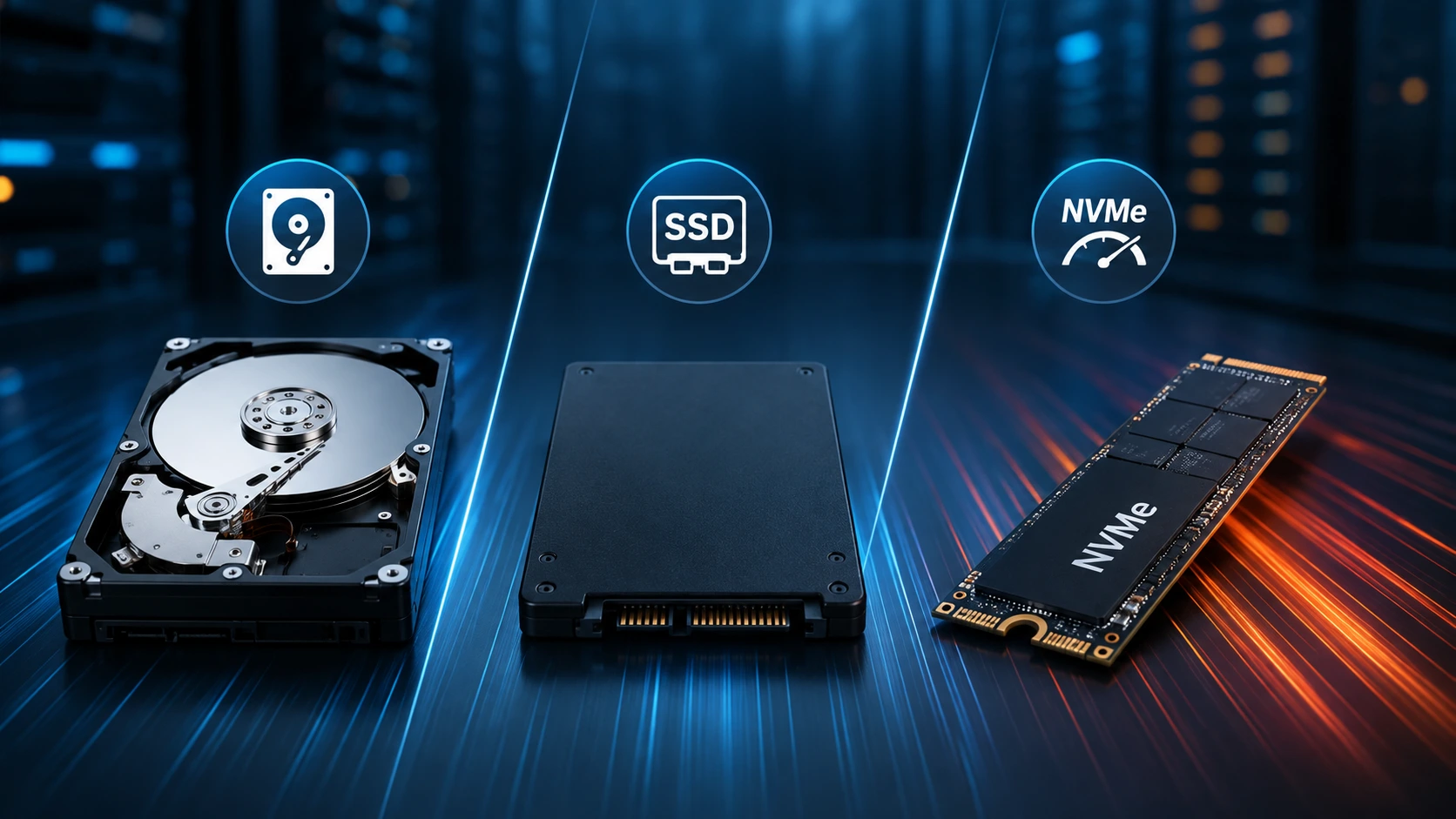
Render jobs read textures, caches and project files constantly and write out large frame sequences. NVMe drives load assets quickly and keep render nodes from waiting on disk. Use larger HDD capacity only for archives and finished work. Our HDD vs SSD vs NVMe comparison explains the trade-offs.
Software Support
Most professional render engines run on Linux and Windows. Confirm that your renderer, plugins and license model work on the operating system you plan to install. If you manage several machines, a render farm manager such as Flamenco (for Blender), Royal Render or a custom job queue lets one server distribute frames across many.
Dedicated Server for Video Transcoding: What to Look For
Video transcoding converts source files or live streams into the formats viewers' devices can play. A typical pipeline takes one high-quality source and produces several versions, which is called an adaptive bitrate (ABR) ladder, for HLS or DASH delivery.
CPU Encoding vs GPU Encoding
| Feature | CPU encoding (x264, x265, SVT-AV1) | GPU hardware encoding (NVENC and similar) |
|---|---|---|
| Quality per bitrate | Generally the best, especially at slower presets | Good and improving, often slightly less efficient at the same bitrate |
| Speed and throughput | Slower; scales with core count | Much faster; dedicated encoder hardware |
| Parallel streams | Limited by CPU cores | High, but limited by the encoder engine and session limits |
| Power per stream | Higher | Lower |
| Best for | Premium VOD, archives, bandwidth-sensitive delivery | Live streaming, high-volume pipelines, quick turnaround |
Many teams use both: GPU encoding for live and fast turnaround, CPU encoding for premium VOD libraries where saving bandwidth matters.
Choose the Right GPU for Encoding
-
NVENC is dedicated hardware. It sits on the GPU separately from the compute cores, so a card can encode video without using its full rendering power.
-
Not every GPU has an encoder. Some data-center AI accelerators are built for compute and may not include video encode hardware. Always check the spec sheet for encoder support before you order.
-
Codec support varies by generation. AV1 hardware encoding, for example, requires newer GPU generations. Confirm the codecs you need: H.264, HEVC and AV1.
-
Check session limits. Consumer-grade GPUs have historically had driver-imposed limits on concurrent encode sessions, and professional cards generally do not. Verify the current limit for the card you choose if you plan to run many parallel streams.
Storage and Memory for Transcoding
Transcoding is read-heavy and write-heavy at the same time. Source files stream in while multiple outputs stream out. Fast NVMe storage keeps the encoders fed. Memory needs are more modest than rendering: 32 to 128 GB covers most transcoding servers, depending on how many parallel jobs and filters you run.
Live vs On-Demand
Live transcoding is latency-sensitive. Use hardware encoding, a stable network, and enough headroom that the server never drops below real time.
VOD (on-demand) transcoding is batch work. A queue runs jobs as capacity allows, so you can prioritize quality and cost over speed.
Network and Bandwidth: Often the Real Bottleneck
Even a perfect server fails a streaming platform if the network is too small. A simple planning formula:
Concurrent viewers ≈ (port speed × 0.8) ÷ average bitrate per viewer
The 0.8 factor leaves 20 percent headroom. Using typical delivery bitrates of about 6 Mbps for 1080p and about 15 to 25 Mbps for high-quality 4K:
| Port speed | Approx. 1080p viewers (6 Mbps) | Approx. 4K viewers (20 Mbps) |
|---|---|---|
| 1 Gbps | about 130 | about 40 |
| 10 Gbps | about 1,300 | about 400 |
| 20 Gbps | about 2,600 | about 800 |
| 40 Gbps | about 5,300 | about 1,600 |
These are planning estimates, not guarantees. Real capacity depends on your player, ABR ladder, CDN use and traffic patterns.
Options to consider:
-
Our 10 Gbps dedicated servers suit mid-size streaming and large file delivery.
-
The 20 Gbps and 40 Gbps tiers suit large platforms and origin servers behind a CDN.
-
If your traffic is heavy and steady, read about unmetered dedicated servers. Unmetered still means your port speed is the ceiling, so size the port as carefully as the server.
-
Public live streams attract attacks, so consider DDoS-protected dedicated server providers.
Sizing Guide by Use Case
Use this table as a starting point, then adjust based on your own test renders and encodes.
| Use case | CPU | GPU | RAM | Storage | Network |
|---|---|---|---|---|---|
| Freelance 3D artist (Blender, GPU render) | 8 to 16 cores (Ryzen) | 1 GPU with 16 to 24 GB VRAM | 64 GB | 1 to 2 TB NVMe | 1 Gbps |
| Animation studio (CPU render farm node) | 64+ cores (EPYC) | Optional | 256 GB | 2 to 4 TB NVMe plus HDD archive | 1 to 10 Gbps |
| Multi-GPU render node (Octane, Redshift, V-Ray GPU) | 16 to 32 cores | 2 to 4 GPUs, VRAM sized to scene | 128 to 256 GB | 2 TB+ NVMe | 1 to 10 Gbps |
| VOD transcoding platform | 32 to 64 cores | NVENC-capable GPU (optional) | 64 to 128 GB | 4 TB+ NVMe plus bulk HDD | 10 Gbps+ |
| Live streaming transcoder | 16 to 32 cores | NVENC-capable GPU | 32 to 64 GB | 1 TB NVMe | 10 Gbps+, DDoS protection |
Dedicated Server vs Cloud vs VPS
| Factor | Dedicated server | Cloud GPU/CPU instance | VPS |
|---|---|---|---|
| Performance consistency | Highest; hardware is yours | Good, but depends on instance type | Variable; shared resources |
| GPU access | Full, direct access | Available, often at premium hourly rates | Rare or limited |
| Cost for 24/7 workloads | Usually lowest per month | Can become expensive | Low, but limited capacity |
| Cost for occasional bursts | Higher (fixed monthly) | Lowest (pay per hour) | Low |
| Bandwidth cost | Often included or unmetered | Egress commonly billed per GB | Usually capped |
| Customization | Full control | Limited to provider options | Limited |
| Best for | Steady rendering, transcoding, streaming | Short projects, bursting beyond your own capacity | Light tasks, testing, small sites |
A common hybrid approach is to run baseline capacity on a dedicated server and burst to cloud only for deadline peaks. If you are also weighing GPU ownership, see our rent vs buy GPU server guide.
Choosing a Server Location
Location affects both upload speed and viewer experience:
-
Close to your team so you can move large project files quickly.
-
Close to your audience for streaming. Viewers far from the origin server see more buffering.
-
Well connected. Strong peering and carrier diversity matter for delivery.
Popular choices include Frankfurt for European audiences and Tokyo for Asia-Pacific reach.
Setup and Optimization Checklist
-
Install the right drivers. Use the current stable GPU driver for your card and confirm it with nvidia-smi (NVIDIA) or the equivalent for AMD.
-
Match your software to the hardware. Build or install an FFmpeg version with NVENC, VAAPI or AMF support if you plan to use hardware encoding.
-
Test before you scale. Run a representative render and a representative encode, and note frame time, encode speed (FFmpeg reports it as a multiple of real time) and resource use.
-
Use a job queue. Tools such as a render farm manager, or a simple queue for FFmpeg jobs, keep the server busy and make failures recoverable.
-
Separate hot and cold storage. Keep active projects on NVMe and finished work on larger drives.
-
Monitor temperature, GPU load and disk I/O. Sustained loads expose cooling and bottleneck problems quickly.
-
Secure the server. Use key-based SSH, a firewall and regular updates. Our dedicated server hardening checklist covers the steps.
-
Back up what matters. Project files and final outputs should live in more than one place. See our dedicated server backup guide.
Common Mistakes to Avoid
-
Buying by GPU name instead of VRAM. The scene has to fit in memory.
-
Ignoring encoder support. Not every GPU has a video encoder, and codec support varies by generation.
-
Undersizing the network. A fast server on a slow port still delivers slow video.
-
Skipping RAM. Renders that run out of memory crash or slow down dramatically.
-
Forgetting licenses. Some render engines and codecs have licensing terms that affect how many machines or users you can run.
-
Running everything on one disk. Mixing OS, projects and outputs on a single drive creates avoidable bottlenecks.
Checklist Before You Order
-
Does my renderer use CPU, GPU or both?
-
How much memory does my largest scene need?
-
Which codecs and resolutions must I output, and how many streams at once?
-
How much outbound bandwidth do I need at peak?
-
Where are my users and my team located?
-
Do I need DDoS protection, backups or a control panel?
Conclusion
The best dedicated server for 3D rendering and video transcoding depends on your software, scene size, output formats and audience. Start with the workload: CPU cores and RAM for CPU rendering, VRAM and GPU count for GPU rendering, encoder support and storage speed for transcoding, and a network port large enough for delivery. Then test with a real project before you scale.
If you are ready to compare options, explore KW Servers dedicated servers across multiple global locations, or review our GPU dedicated server hosting guide to pick the right hardware for your pipeline.
Frequently Asked Questions
Is a dedicated server good for 3D rendering?
Yes, especially for steady or heavy workloads. A dedicated server gives you all of the hardware, which means consistent render times, support for high-core-count CPUs or multiple GPUs, and a predictable monthly cost.
Do I need a GPU server for video transcoding?
Not always. CPU encoding can give excellent quality and works well for batch jobs. A GPU with a hardware encoder is the better choice for live streaming and high-volume pipelines where speed and efficiency matter.
How much RAM does a render server need?
For light to medium scenes, 64 GB is a reasonable start. Heavy production scenes often need 128 to 256 GB, and very large VFX scenes can need more. Size for your largest scene, not your average one.
CPU or GPU rendering: which is better?
GPU rendering is often faster for the same scene, but your scene must fit in GPU memory and your renderer must support your card. CPU rendering handles very large scenes and offers more memory headroom. The right choice depends on your software and scene size.
How much bandwidth do I need for video streaming?
Use the formula in this guide: usable port speed divided by the average bitrate per viewer. A 10 Gbps port can serve roughly 1,300 simultaneous 1080p viewers at 6 Mbps, before CDN offload.
Can I use one server for both rendering and transcoding?
Yes, if you size for the busier workload and schedule jobs sensibly. For production workloads, many teams prefer separate nodes so a long render never delays a live stream.
Dedicated server or cloud for rendering?
Choose a dedicated server for workloads that run most days, and cloud for short, occasional bursts. Many studios combine the two.